Who issues tickets this way
Organisers who sell places through their own website or booking app, and want each guest to receive a proper ticket rather than a plain confirmation email. Three examples:
- A small music venue. A 250-capacity room sells standing tickets for gigs most nights of the week. Each ticket shows the act, the door time and a booking code the door staff check against their list.
- A weekend workshop. A pottery studio runs classes for twelve people. The ticket carries the guest’s name, the date and the studio address, so nobody turns up on the wrong Saturday.
- A two-day conference. Organisers issue day passes and full passes, plus speaker tickets. Every ticket names its holder, and the ticket type tells the registration desk which badge to hand over.
Use it only for events you run or sell tickets for with the organiser’s consent. Each ticket should match a real booking in your system.
What a ticket needs to get someone through the door
A ticket is read twice: by the guest at home, and by a steward at the entrance with a queue behind them. Design for the second reading first.
- One code that is easy to read aloud. Short, without look-alike characters such as O and 0, so a steward can type it in if a scan fails.
- The things people forget. The door time, not just the start time, and the full venue address with the entrance to use.
- Exactly where to go. For seated events, print the gate, the row and the place in large type, such as row F, seat 14. For standing events, say so plainly.
- Whose ticket it is. A name cuts down on resale and helps when someone loses their phone at the door.
- The rules that cause arguments. Re-entry, age limits and resale terms belong on the ticket, in small print, not only on your website.
What the ticket starter gives you
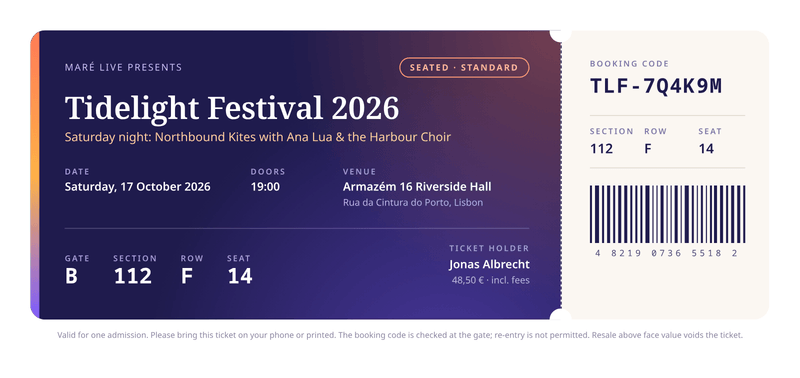
The ticket starter is one ticket per page, 210 by 99 mm, a third of an A4 sheet. The main part shows the presenter, the event name and line-up, the date, the door time and the venue. A row of large figures shows the gate, section and row, with the place number next to them.
On the right, a tear-off stub repeats the booking code and the seating details. Under them sits a barcode-style strip drawn from the digits you send. That strip is decoration and cannot be scanned. The conditions you send print in small type below the ticket.
The date is written out in full in the venue’s time zone, and the price uses your currency and locale. The colours, the artwork and every label can be changed in the editor. Simple mode lets you try different sample bookings in a form before you connect anything.
Issue tickets from your booking flow
The right moment to make a ticket is when payment for the booking succeeds. Your server already knows the event, the guest and what they bought. It sends that to CastPDF once per ticket and passes the result on.
- Design the ticket once. Sign up free, start from the ticket starter, and add your logo, colours and conditions. Remove the seating blocks if your events are standing only.
- Number every ticket in your system. Give each ticket its own number when the booking is saved, from a database sequence or a counter you control. CastPDF prints the number you send and never invents one.
- Request one PDF per ticket. For each ticket in the booking, send
template_idand that ticket’sdatatoPOST /v1/pdf. Use the booking code plus the ticket number as theIdempotency-Key, such asTLF-7Q4K9M-2. - Hand the tickets to the guest. Ask for
"response": "url"and put the links in your confirmation email, or save the files and show them on the booking page.
import os
import requests

API_URL = "https://api.castpdf.com/v1/pdf"


def issue_tickets(booking, event):
    links = []
    for n, item in enumerate(booking["tickets"], start=1):
        resp = requests.post(
            API_URL,
            headers={
                "Authorization": f"Bearer {os.environ['CASTPDF_API_KEY']}",
                "Idempotency-Key": f"{booking['code']}-{n}",
            },
            json={
                "template_id": os.environ["TICKET_TEMPLATE_ID"],
                "data": {
                    "currency": "EUR",
                    "locale": "pt-PT",
                    "event": event,
                    "ticket": item["ticket"],
                    "holder": {"name": item["holder_name"]},
                    "booking": {"code": booking["code"], "barcode": item["number"]},
                },
                "filename": f"ticket-{booking['code']}-{n}.pdf",
                "response": "url",
            },
            timeout=60,
        )
        resp.raise_for_status()
        links.append(resp.json()["url"])
    return links
If the email step fails and your job runs again, the same keys return the same tickets instead of new ones. Nothing is counted twice. The JSON to PDF guide explains how to shape data for any template, and the Python guide covers retries.
The tricky parts of ticketing
- QR codes and scannable barcodes. CastPDF has no QR or barcode helper today. Make the image in your own code with any QR library, then add an image tag to the template and send the picture as a
data:URL or a public link. Checking the code at the door is your own system’s job. - Sequential numbers. Numbers come from your database, not from the PDF. That way a failed or repeated request can never skip a number or use one twice.
- A name change. A changed ticket has a different body, so the old key is refused with
idempotency_mismatch. Give the new version its own key, such asTLF-7Q4K9M-2-v2, and cancel the old ticket in your system. - Several tickets in one booking. The starter prints one ticket per PDF, so a family of four gets four files. If you would rather send one file, change the template to loop over a list of tickets and start each on a new page.
- Long event names. The ticket box has a fixed height. A very long event name or line-up can run past its bottom edge and be cut off, so test your longest one with Generate PDF before you go live.
- Print at home. CastPDF makes PDFs only, not phone wallet passes. The ticket prints on any home printer and reads well on a screen. Ask guests to print at actual size so a scannable code is not shrunk.
Variations on the ticket
- Standing tickets. Delete the seating blocks and use the space for the act’s artwork.
- Day passes. Put the day in the ticket type, such as "Friday pass", and change the colour per day so stewards spot the wrong day at a glance.
- Workshop places. Swap the line-up for the course title and the teacher’s name, and add what to bring in the conditions.
Every field is described on the ticket template page. Each ticket counts as one PDF. The Free plan includes 100 live PDFs a month, which covers a small venue or a monthly workshop, and test tickets are free while you set things up.
The data it needs, and one request
This is the real sample data of the event ticket template. Save your template in the dashboard, copy its ID, and send data in this shape. The reply is the finished PDF.
curl https://api.castpdf.com/v1/pdf \
  -H "Authorization: Bearer $CASTPDF_API_KEY" \
  -H "Content-Type: application/json" \
  -d @request.json \
--output ticket.pdf{
"template_id": "YOUR_TEMPLATE_ID",
"data": {
"currency": "EUR",
"locale": "pt-PT",
"event": {
"presenter": "Maré Live",
"name": "Tidelight Festival 2026",
"lineup": "Saturday night: Northbound Kites with Ana Lua & the Harbour Choir",
"date": "2026-10-17",
"time_zone": "Europe/Lisbon",
"doors": "19:00",
"venue": "Armazém 16 Riverside Hall",
"address": "Rua da Cintura do Porto, Lisbon",
"conditions": "Valid for one admission. Please bring this ticket on your phone or printed. The booking code is checked at the gate; re-entry is not permitted. Resale above face value voids the ticket."
},
"ticket": {
"type": "Seated · Standard",
"gate": "B",
"section": "112",
"row": "F",
"seat": "14",
"price": 48.5
},
"holder": {
"name": "Jonas Albrecht"
},
"booking": {
"code": "TLF-7Q4K9M",
"barcode": "4 8219 0736 5518 2"
}
}
}