How to use the Certificate maker
- Name the recipient. Type the name exactly as it should appear, accents and all.
- Describe the achievement. The course or event, the date it was completed, the hours and an optional grade line.
- Sign it. The organisation, the person who signs and their title. Add a logo if you have one.
- Create the PDF. Press Create certificate PDF and print it on A4 landscape, or send it by email.
The design
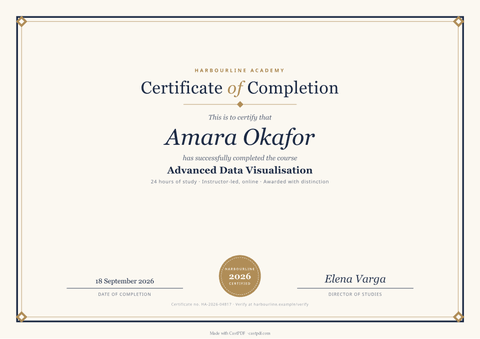
The certificate is A4 landscape with a fine double border, a serif title and gold accents. The recipient’s name is the largest line on the page, as it should be. Very long names may wrap onto a second line, so use the short form people know, such as first name and surname.
At the bottom it prints the completion date, the signatory with their title, and a certificate ID with a verification line. The ID helps anyone confirm that a certificate is genuine when they ask you.
Who uses a certificate maker
- Trainers and coaches who run a workshop and want to hand out a certificate the same day.
- Schools and clubs that award a course, a badge or a season.
- Companies confirming that an employee finished mandatory training.
- Event organisers giving attendees proof of participation.
One certificate at a time is fine here. For a whole class, upload the list of names to the API instead. You get every certificate in one ZIP, each with its own name and ID.
Printing and sending it
The PDF is A4 landscape with the border close to the edge. Print it at actual size, not "fit to page", so the border stays even. Heavier paper of 160 to 250 g makes it feel like a certificate rather than a printout.
To send it by email, attach the PDF as it is. It opens on any phone or computer and prints the same everywhere, because the fonts are inside the file. Name the file after the person, so they can find it again later.
Getting the details right
- Copy names from your registration list, so the spelling matches what people typed.
- Use a certificate ID scheme you can look up later, such as the course code plus a number.
- Keep the grade line short: one honest sentence reads better than three.
- Print a test page first: printers differ in how close to the edge they can print.
Limits of the free tool
| Input | One recipient per certificate; a logo of up to 150 KB |
|---|---|
| Output | A one-page PDF on A4 landscape |
| Not supported | Many names at once (use the API for that) |
| How often | 10 requests a minute and 100 a day from one address |
| On every PDF | A small "Made with CastPDF" line in the footer |
Automate this
Doing this every week? The same engine runs behind the CastPDF API, with no footer on paid plans and 100 free PDFs a month to start.
With the API
Render the certificate template with each recipient’s data on POST /v1/pdf. The certificate template page lists every field.
From a spreadsheet
Upload your list of names as CSV or XLSX and get one certificate per row in a ZIP with a batch.
In a no-code workflow
- CastPDF node for n8nAvailable
- Zapier appIn review
- Any tool with an HTTP step